
How Much Data Do WhatsApp Calls, Voice Notes, and Status Updates Actually Use?

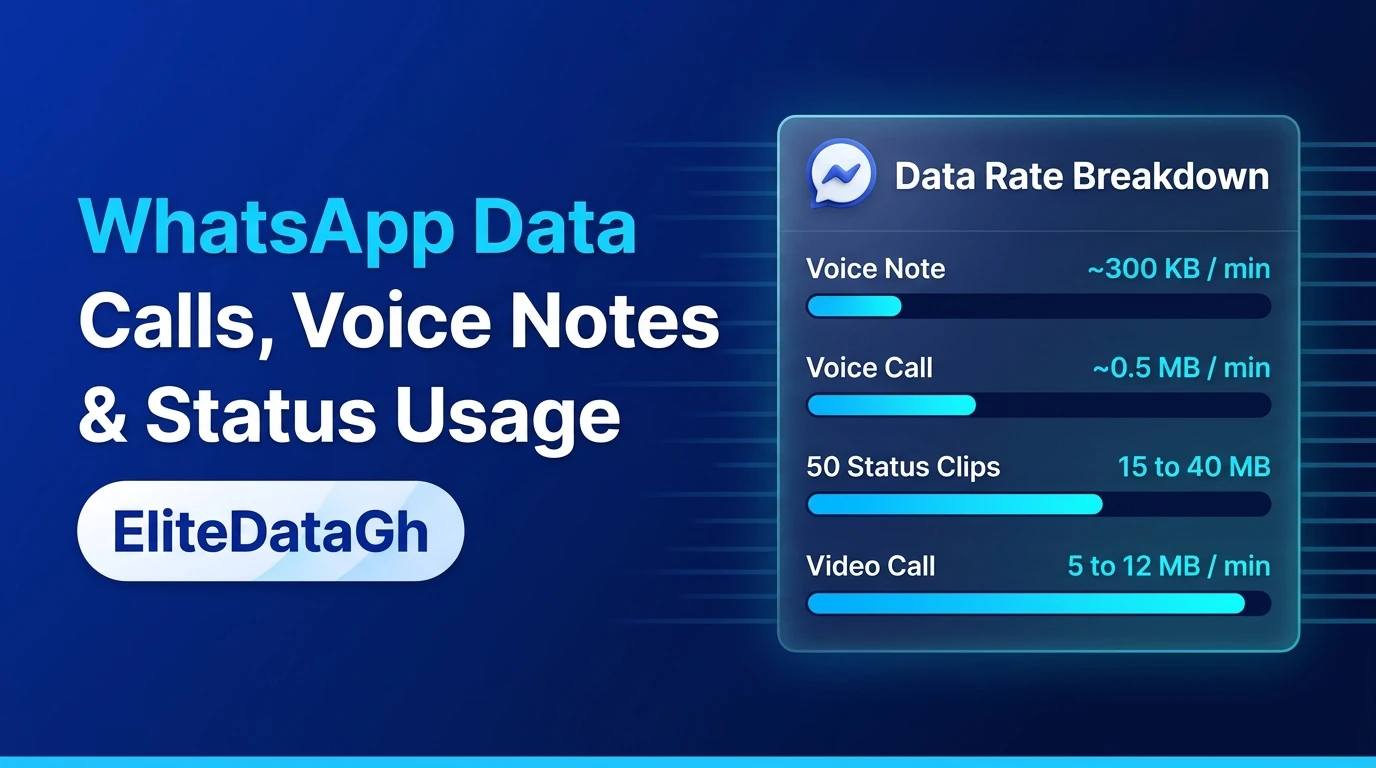
Table of Contents
- Exact WhatsApp Data Usage by Activity
- 1. WhatsApp Voice Notes vs Voice Calls: Why Voice Notes Are Slightly Smaller
- 2. WhatsApp Video Calls: How 30 Minutes Eats Nearly 250 MB
- 3. Why Viewing WhatsApp Status Updates Drains More Data Than You Expect
- 4. Hidden WhatsApp Background Traps That Drain Gigabytes
- How to Check Exact WhatsApp Data Used on Your Phone
- 5 Settings to Cut WhatsApp Data Usage in Half Immediately
- Frequently Asked Questions
A standard WhatsApp text message uses less than 1 KB of mobile data, a 1-minute voice note uses 300 KB to 600 KB, a 1-minute WhatsApp voice call uses roughly 0.3 MB to 0.5 MB (18 MB to 30 MB per hour), and a 1-minute WhatsApp video call consumes 3 MB to 8 MB (180 MB to 480 MB per hour), scaling higher on group video calls. Meanwhile, watching WhatsApp Status updates is often the biggest surprise drain on smartphones, consuming 15 MB to 45 MB for every 50 Status clips viewed, especially when contacts post multiple 30-second HD videos.
In Ghana and across mobile-first networks worldwide, many users blame their telecom carrier for disappearing bundles when hidden WhatsApp video Status pre-loading, group chat auto-downloads, and mobile data cloud backups silently consume gigabytes in the background. Knowing exact kilobyte and megabyte usage per feature (and toggling three built-in WhatsApp controls) cuts WhatsApp data consumption by more than half without sacrificing daily chats.
Exact WhatsApp Data Usage by Activity
Different WhatsApp actions use dramatically different compression codecs (Opus audio vs VP8/H.264 video), which explains why a 1-hour voice call uses less data than 5 minutes of video calling:
| WhatsApp Activity | Average Data Used Per Unit | Estimated 1-Hour Total | Compression & Behavior Notes |
|---|---|---|---|
| Plain Text Messages | Under 1 KB per message | ~0.5 MB to 2 MB (heavy texting) | Almost zero data unless emojis/link previews load |
| Voice Notes (Recording / Playback) | ~300 KB to 600 KB per minute | ~18 MB to 35 MB | 15-second voice note uses only 75 KB to 150 KB |
| WhatsApp Voice Call (1-on-1) | ~0.3 MB to 0.5 MB per minute | ~18 MB to 30 MB | Uses ultra-efficient low-bitrate Opus audio codec |
| WhatsApp Video Call (1-on-1) | ~3 MB to 8 MB per minute | ~180 MB to 480 MB | Scales up on fast 4G/5G; drops ~30% in Low Data Mode |
| Group Video Call (3 to 8+ people) | ~6 MB to 15 MB per minute | ~360 MB to 900 MB | Multiple simultaneous video feeds multiply bandwidth |
| Viewing Photos in Chat | ~100 KB to 300 KB (Standard) | ~2 MB to 6 MB (20 photos) | HD Photos toggle uses 1 MB to 4 MB per photo |
| Viewing WhatsApp Status Updates | ~15 MB to 45 MB per 50 statuses | Varies by video ratio | Photos (~150 KB) vs 30-sec Status videos (~1.5 to 4 MB) |
You can calculate how long your current MTN, Telecel, or AT Ghana data bundle will last based on your daily WhatsApp calls and Status viewing using our free Data Usage Calculator and MB to GB Converter.
1. WhatsApp Voice Notes vs Voice Calls: Why Voice Notes Are Slightly Smaller
Sending and listening to voice notes feels heavy when chats fill up with dozens of audio clips, yet voice notes actually burn remarkably little mobile data:
- Voice Notes (
~300 KB to 600 KB per minute): Most casual 15-second voice notes weigh around 75 KB to 150 KB, meaning you can send or play over 150 short voice notes using just 20 MB of data. - Voice Calls (
~0.3 MB to 0.5 MB per minute): A full 60-minute WhatsApp voice call uses roughly 18 MB to 30 MB, making voice calls roughly 10 times cheaper in data than a WhatsApp video call of the exact same duration. - Why Voice Calls Use Slightly More Overhead Than One-Way Voice Notes: Live voice calls maintain constant bidirectional audio streams plus real-time packet jitter buffers, whereas a recorded voice note transmits once as a compact compressed file.
2. WhatsApp Video Calls: How 30 Minutes Eats Nearly 250 MB
Unlike audio calls, WhatsApp video calling automatically adapts camera resolution and frame rate upward whenever you have strong 4G LTE or 5G signal:
- On Moderate 3G / Average 4G (
~3 to 4 MB per minute): WhatsApp locks video resolution near360pto keep faces smooth, consuming around 90 MB to 120 MB for a 30-minute call. - On Fast 4G+ / Fibre / 5G (
~6 to 8 MB per minute): Video upgrades toward crisp720p HD, draining 180 MB to 240 MB in 30 minutes (or nearly 0.5 GB in one hour). - Screen Sharing & Group Video: Sharing your phone screen or calling 4 friends at once raises total data burn toward 10 MB to 15 MB per minute (600 MB to 900 MB per hour).
3. Why Viewing WhatsApp Status Updates Drains More Data Than You Expect
Many smartphone users never realize WhatsApp Status is practically a silent video feed inside their messaging app:
- Compressed Image Statuses: A single photo Status is compressed by WhatsApp to roughly 100 KB to 250 KB (
0.15 MB to 0.25 MB). Viewing 50 image-only statuses uses only 8 MB to 12 MB. - 30-Second Video Statuses (
1.5 MB to 4 MB per clip): Business vendors, comedy skits, and church or music flyers often post 5 to 15 consecutive 30-second video clips. Watching just 20 video statuses consumes 30 MB to 80 MB, roughly equal to watching 15 to 25 minutes of standard-definition YouTube or TikTok. - Status Pre-Fetching Behavior: When you tap into the Updates tab and begin watching statuses from your first contact, WhatsApp pre-downloads the next two or three upcoming status slides in advance so swiping feels instant. Even if you exit quickly mid-video, part of those queued clips has already used mobile data.
4. Hidden WhatsApp Background Traps That Drain Gigabytes
If your in-app storage usage looks huge compared to your actual chatting time, inspect these three default behaviors:
Trap 1: Active Group Chat Media Auto-Download
Being inside five busy community, alumni, church, or reseller WhatsApp groups with Media Auto-Download enabled means every 25 MB flyer video or HD forward sent by other members downloads onto your SIM bundle automatically, even when you never open the chat.
Trap 2: Uncontrolled HD Photo & Video Uploads
WhatsApp allows users to switch default media quality to HD Quality. Sending or receiving HD videos (1080p) uses 3 to 5 times more data (15 MB to 60 MB per short video) than Standard compression (3 MB to 10 MB).
Trap 3: Scheduled Google Drive or iCloud Chat Backups on Mobile Data
If Back up over Cellular / Mobile Data is enabled inside your chat backup settings, your phone can silently upload 500 MB to 3 GB+ of backed-up photos, voice notes, and stickers the moment a daily or weekly backup triggers.
How to Check Exact WhatsApp Data Used on Your Phone
You do not have to guess how much data WhatsApp burned this month. Check the exact cumulative breakdown right inside the app:
- Open WhatsApp and tap Settings (three-dot menu on Android, bottom-right tab on iPhone).
- Select Storage and Data.
- Tap Network Usage at the top of the screen.
- Inspect live Sent and Received megabytes broken down separately across Calls, Media, Messages, and Status (tap Reset Statistics at the bottom on the first day of the month to track a clean 30-day cycle).
5 Settings to Cut WhatsApp Data Usage in Half Immediately
Open WhatsApp Settings then Storage and Data and apply these five exact changes:
- Enable Use Less Data for Calls: Switch Use less data for calls to ON. This instructs WhatsApp to cap Opus/video bitrates slightly over cellular networks, cutting voice call usage toward
0.25 MB/minand saving 25% to 40% on video calls. - Switch When Using Mobile Data Auto-Download Off Completely: Tap When using mobile data, uncheck Photos, Audio, Videos, and Documents, and tap OK. Only tap to download the specific photos and videos you actually care to see, and let heavy media wait under When connected on Wi-Fi.
- Keep Media Upload Quality on Standard: Under Storage and Data, open Media upload quality and select Standard quality as your default rather than HD quality (you can still manually tap the
HDicon on an individual photo or video when needed). - Lock Chat Backups to Wi-Fi Only: Go to Settings, open Chats, tap Chat backup, and switch Back up using cellular to OFF (and uncheck Include videos if your mobile hotspot allowance is tight).
- Turn Off Background Unmetered Pre-Fetching Outside Active Use: On Android, tap and hold the WhatsApp icon, open App info, choose Mobile data & Wi-Fi, and disable Background data if you only want WhatsApp updating when you open the app (note that turning off background data pauses message notifications until you open WhatsApp or turn it back on).
Frequently Asked Questions
How much data does a 1-hour WhatsApp voice call use?
A 1-hour (60-minute) WhatsApp voice call uses approximately 18 MB to 30 MB of mobile data (0.3 MB to 0.5 MB per minute), or as little as 15 MB per hour when Use less data for calls is turned on.
How much data does a 30-minute WhatsApp video call use?
A 30-minute 1-on-1 WhatsApp video call typically uses between 90 MB and 240 MB (3 MB to 8 MB per minute) depending on your 4G/5G connection speed and whether Low Data Mode is enabled. Group video calls with multiple participants can use 250 MB to 450 MB in 30 minutes.
Does viewing WhatsApp Status without commenting or replying still use data?
Yes. As soon as your phone loads the Updates tab and buffers or plays a contact Status photo or 30-second video clip, the full media file downloads to your device cache and deducts from your data bundle, whether or not you reply.
How many hours of WhatsApp calls can 1GB of data cover?
At an average 25 MB per hour for WhatsApp voice calls, 1 GB (1,000 MB) covers roughly 40 hours of voice calling. By contrast, on WhatsApp video calls (~300 MB per hour), 1 GB lasts roughly 3 hours.
Estimate your daily calling, video streaming, and Status data budget anytime with our free Data Usage Calculator and MB to GB Converter.
Keep Reading
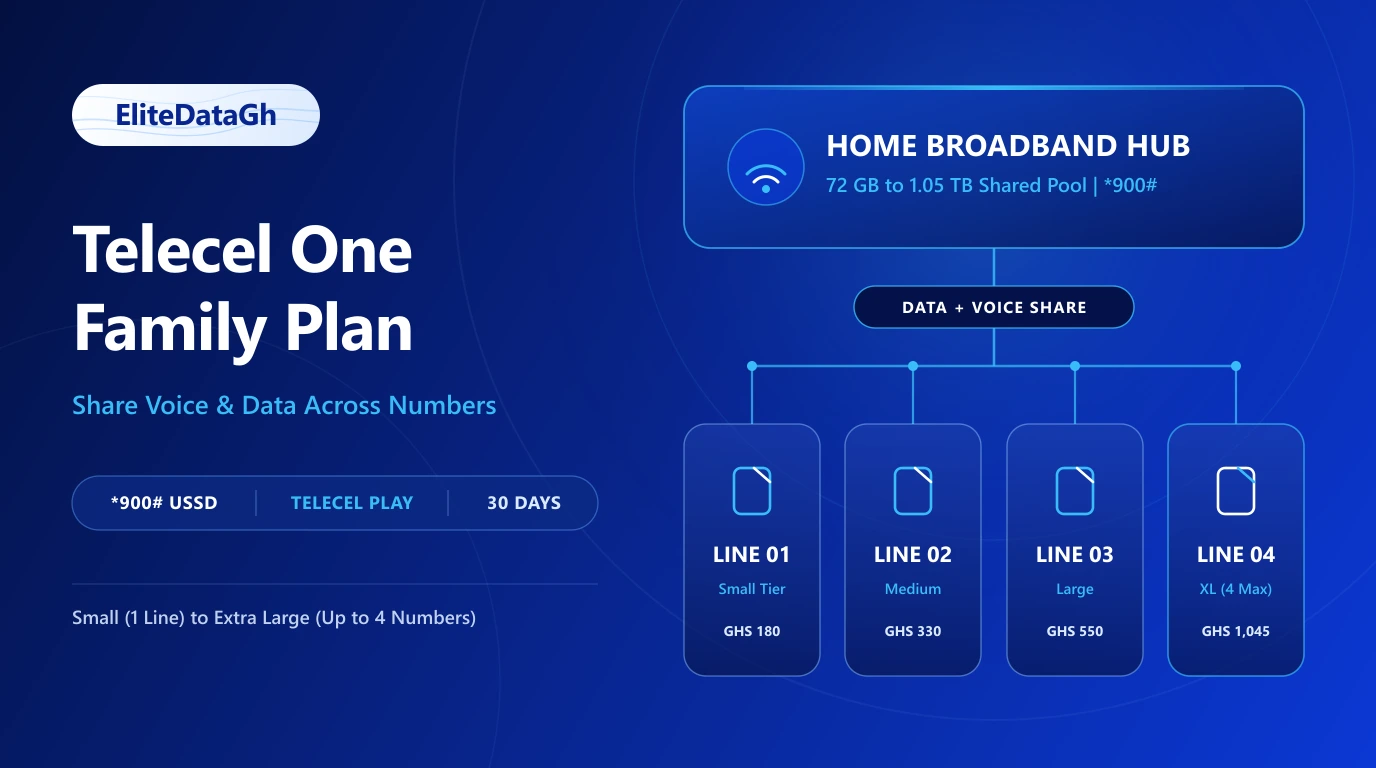
Telecel One Family Plan Explained: How to Share Voice and Data Across Numbers
Telecel One Family explained: dial *900# or use Telecel Play to share broadband data and voice across 1 to 4 paired numbers on 30-day household plans cleanly.
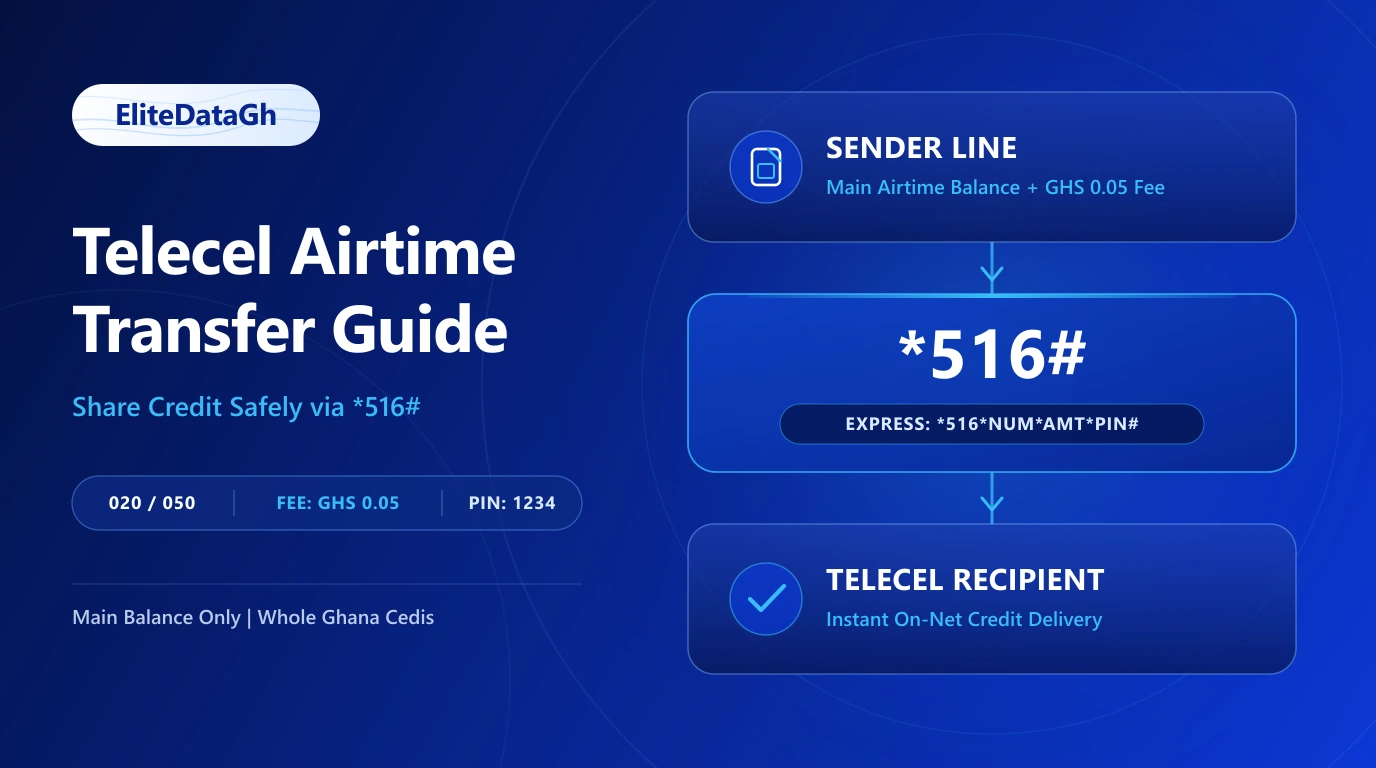
How to Share or Transfer Airtime on Telecel Ghana Using *516#
Dial *516# on Telecel Ghana to share airtime credit to 020 and 050 numbers. Learn the express code, GHS 0.05 fee, default 1234 PIN setup, and transfer rules.
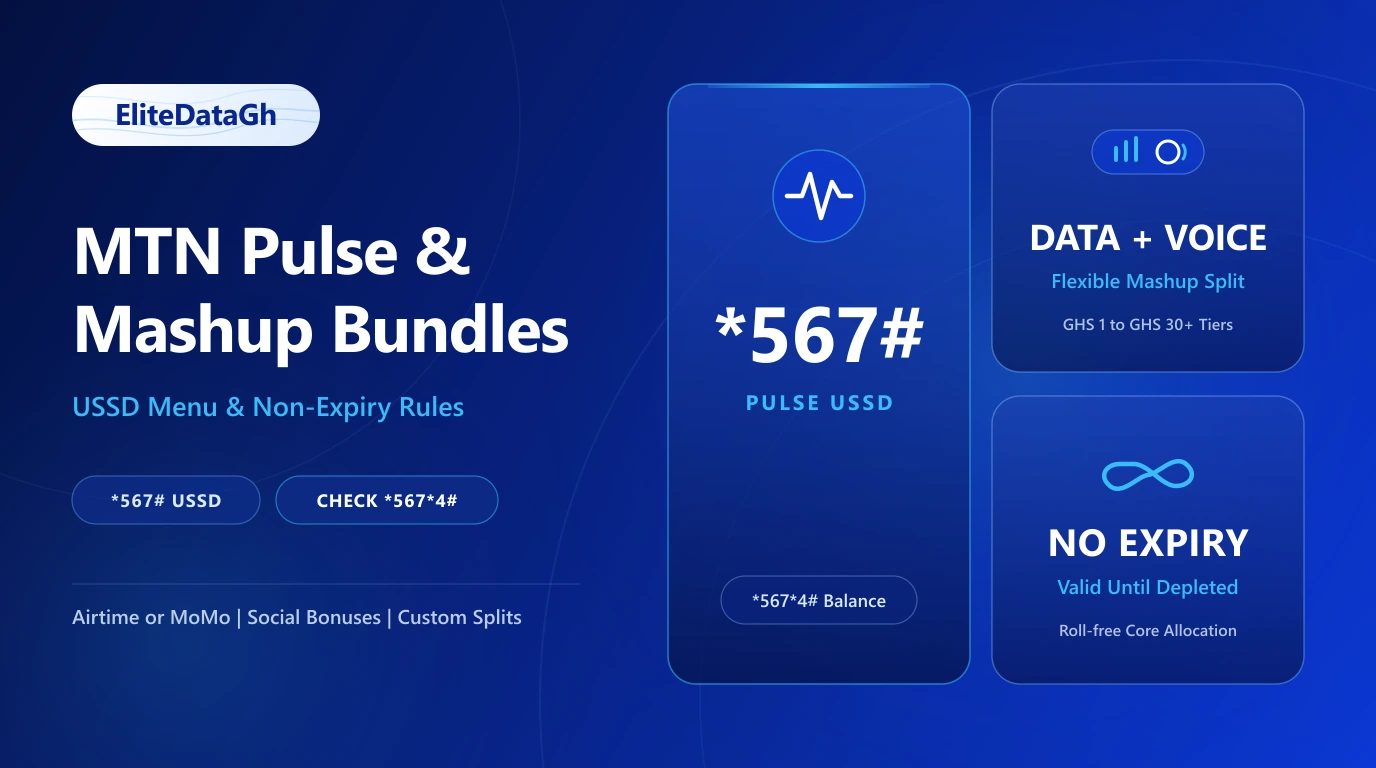
MTN Pulse and Mashup Bundles (*567#): Complete USSD Guide and Validity Rules
Dial *567# for MTN Pulse Mashup bundles in Ghana. Explore Voice and Data mix rules, social bonuses, non-expiry validity, and *567*4# balance checks cleanly.
MTN Ghana Data Zone (*138#) Explained: Why Offers Disappear and How to Qualify
Learn why MTN Ghana Data Zone (*135# and *138#) and Just4U (*141#) offers change, how NCA SMP rules affect pricing, and how your SIM qualifies for better data.
How to Cancel Unwanted Subscriptions and Caller Tunes Draining MTN Airtime
Cancel unwanted MTN Ghana subscriptions draining your airtime: dial *175# for VAS promos, *1355# or SMS Unsubscribe to 1355 for Caller Tunez, and STOP to 138.
How to Check Your SSNIT Number, Statements, and Pay Contributions via USSD (*711*9#)
Dial *711*9# on MTN, Telecel, or AT to verify your SSNIT number, merge your Ghana Card, email contribution statements, and pay SEED MoMo contributions.
Complete Guide to Ghana Emergency Shortcodes: Police (191), Fire (192), Ambulance (193), and 112
Dial 112 toll-free in Ghana for unified Police (191), Fire (192), and Ambulance (193) dispatch, plus verified NADMO, DOVVSU, ECG, and 292 cyber hotlines.