
How to Stop Background Apps From Draining Mobile Data on Android and iPhone

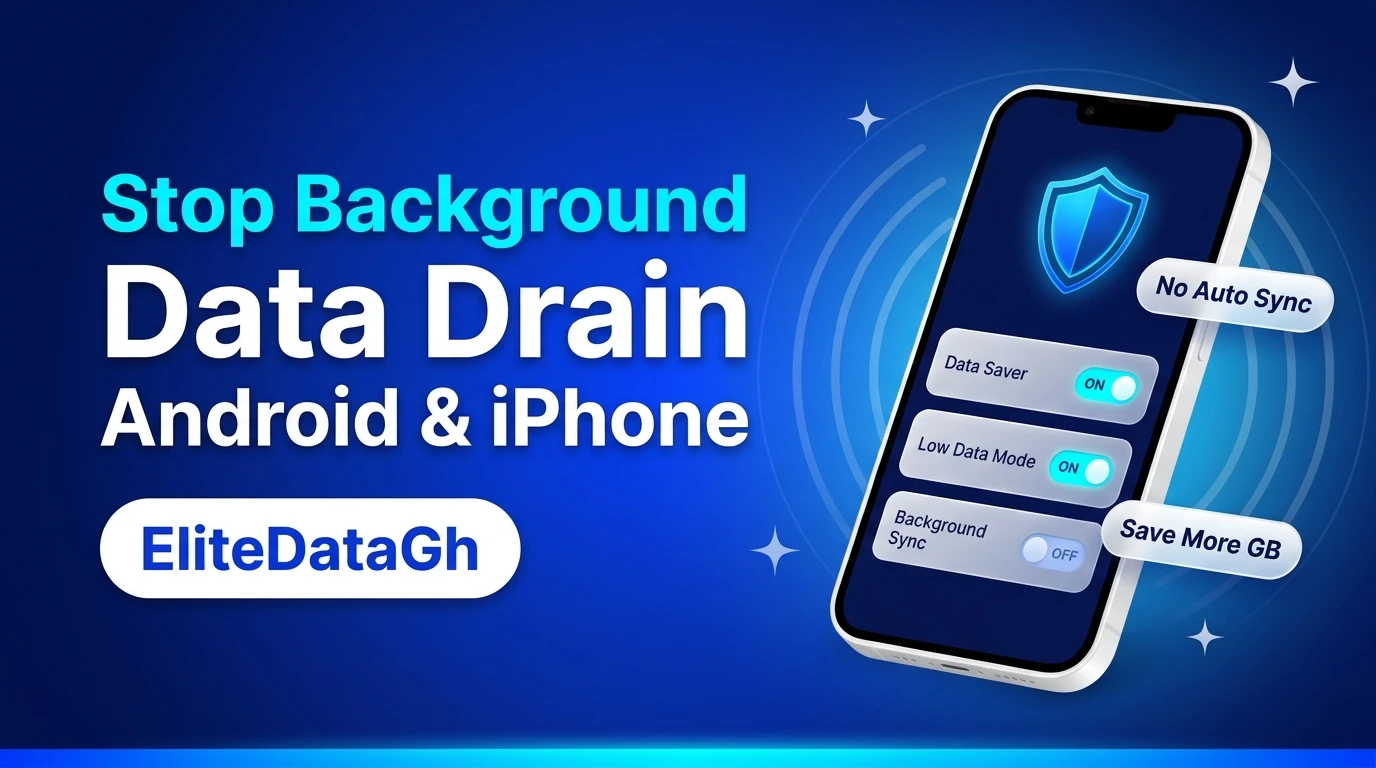
Table of Contents
To stop background apps from silently draining mobile data, turn on Data Saver on Android (or Low Data Mode on iPhone), switch off Wi-Fi Assist and Switch to mobile data, restrict Background app refresh and Background data per app, move cloud photo and WhatsApp backups to Wi-Fi only, and disable automatic Play Store and App Store updates over mobile networks.
Most prepaid data bundles disappear rapidly not from active chatting or web browsing, but because cloud photo uploads, automatic app updates, social feed video preloading, and silent Wi-Fi-to-4G handoff features download hundreds of megabytes while your phone sits locked in your pocket.
Why Locked Phones Still Burn Gigabytes Over Night
Before toggling random buttons, open your phone data tracker once so you see which apps consumed the highest megabytes over the past 7 to 30 days:
- On Android: Open Settings, go to Connections (or Network & Internet), tap Data usage, and open Mobile data usage to rank apps from highest GB downward. Tap any top consumer to inspect Foreground (when open on screen) versus Background (when locked or minimized).
- On iPhone: Open Settings, tap Mobile Service (or Cellular), scroll down to Mobile Data app list, and inspect MB or GB totals next to Photos, System Services, iCloud Drive, TikTok, Instagram, and WhatsApp. Reset statistics cleanly at the bottom when starting a fresh bundle so you track exact consumption.
You can convert raw megabyte numbers reported inside your handset counters directly into gigabytes with the free MB to GB Converter or forecast monthly needs with the Data Usage Calculator.
| Silent Background Culprit | How Much Data It Burns Quietly | Platform Affected | Exact Fix Location |
|---|---|---|---|
| Cloud Photo & Video Sync | 1 GB to 10 GB+ per week | Android and iPhone | Google Photos Backup / iOS Photos Cellular |
| App Store & Play Store Auto-Updates | 300 MB to 3 GB+ monthly | Android and iPhone | Store Network Preferences (Wi-Fi only) |
| Wi-Fi Assist / Smart Network Switch | 500 MB to 4 GB when Fibre/MiFi stutters | Android and iPhone | Wi-Fi Assist / Adaptive connectivity |
| WhatsApp Auto-Download & Chat Backup | 500 MB to 5 GB+ monthly | Android and iPhone | WhatsApp Storage and Data + Chat Backup |
| Social Video Preloading & Autoplay | 400 MB to 2 GB weekly | TikTok, Instagram, Facebook, YouTube | In-app Data Saver menus |
| Laptop Hotspot Auto-Updates | 2 GB to 8 GB in one session | Windows / Mac via Hotspot | Windows Metered Connection / macOS Low Data Mode |
Part 1: Stop Background Data Drain on iPhone (iOS)
Applying these five switches on iPhone cuts silent background traffic immediately without breaking phone calls, banking alerts, or WhatsApp notifications.
1. Enable Low Data Mode on Mobile Data (and Hotspot Wi-Fi)
Low Data Mode instructs iOS to pause automatic iCloud backups, background app syncing, and automatic OS updates whenever you run on cellular internet:
- Open Settings and tap Mobile Service (labeled Cellular on some regions).
- Tap Mobile Data Options (or Cellular Data Options), tap Data Mode if shown, and select Low Data Mode.
- Bonus tip when using a portable 4G MiFi router: tap Settings, tap Wi-Fi, press the blue
ibutton next to your MiFi network name, and turn on Low Data Mode for that Wi-Fi connection too so your iPhone treats limited MiFi bundles carefully.
2. Disable Wi-Fi Assist (Critical for Unstable Fibre or Router Wi-Fi)
When home Fibre, campus Wi-Fi, or office routers slow down briefly, Wi-Fi Assist quietly pulls data through your SIM card in the background while your status bar still makes you think you are browsing on Wi-Fi:
- Go to Settings, then Mobile Service (or Cellular).
- Scroll all the way to the very bottom past your full app list.
- Toggle Wi-Fi Assist completely OFF (and toggle iCloud Drive and iCloud Backup over mobile data OFF right beside it).
3. Block Photos and iCloud Sync Over Mobile Networks
- Open Settings, scroll down to Apps (or directly to Photos on older iOS versions), and tap Photos.
- Tap Mobile Data (or Cellular Data).
- Switch Mobile Data OFF (or disable Unlimited Updates) so HD camera-roll clips upload strictly on unlimited home or office Wi-Fi.
4. Restrict Background App Refresh
- Go to Settings, tap General, and tap Background App Refresh.
- Tap Background App Refresh at the top and switch it to Wi-Fi or Off, or keep it on Wi-Fi only and manually toggle off shopping, gaming, streaming, and travel apps below.
5. Turn Off Mobile Data App Store Updates
- Go to Settings, tap Apps, and select App Store (or tap App Store directly in Settings).
- Under the Mobile Data section, disable Automatic Downloads and set App Downloads to ask or require Wi-Fi for large updates.
Part 2: Stop Background Data Drain on Android
Exact menu labels vary slightly between Stock Android/Pixel, Samsung Galaxy (One UI), Tecno (HiOS), Infinix (XOS), and Xiaomi (MIUI/HyperOS), yet all modern Android handsets carry the same five controls.
1. Switch On Global Data Saver
Data Saver blocks background apps from sending or receiving mobile packets when minimized while keeping active on-screen apps running normally:
- Stock Android / Pixel / Tecno / Infinix / Xiaomi: Open Settings, tap Network & internet (or SIM cards & mobile networks), tap Data Saver, and toggle Use Data Saver ON.
- Samsung Galaxy (One UI): Open Settings, tap Connections, tap Data usage, tap Data saver, and toggle Turn on now ON.
If instant notifications for ride-hailing drivers, banking apps, or WhatsApp delay while Data Saver is active, tap Unrestricted data (or Allowed to use data while Data saver is on) and whitelist only those 2 or 3 essential apps.
2. Lock Individual Heavy Apps With Per-App Background Controls
Even when you turn Data Saver off temporarily for hotspot work, heavy apps continue refreshing silently unless blocked individually:
- Open Settings, tap Apps, and choose a heavy app (for example Facebook, TikTok, Instagram, Snapchat, Spotify, or Chrome).
- Tap Mobile data & Wi-Fi (or Mobile data on Samsung).
- Toggle Background data OFF.
- Ensure Unrestricted data usage stays OFF for non-essential apps.
3. Disable Silent Wi-Fi-to-Mobile Switching
Just like iPhone Wi-Fi Assist, Android phones include smart failover toggles that burn SIM bundles behind weak Wi-Fi:
- Google Pixel / Stock Android: Open Settings, tap Network & internet, tap Adaptive connectivity, and turn it OFF.
- Samsung Galaxy: Open Settings, tap Connections, tap Wi-Fi, press the three-dot menu in the upper right, choose Intelligent Wi-Fi, and turn Switch to mobile data OFF.
- Tecno / Infinix / Xiaomi: Open Wi-Fi settings, open Wi-Fi preferences or Wi-Fi Assistant, and disable Switch to mobile data automatically or Select best network automatically.
4. Restrict Google Play Store and Google Photos Backups
- Google Play Store: Open the Play Store, tap your profile picture in the upper right, select Settings, tap Network preferences, tap Auto-update apps, and set it strictly to Over Wi-Fi only. Do the same for Auto-play videos (disable video auto-play completely).
- Google Photos: Open Google Photos, tap your profile icon, open Photos settings, tap Backup, tap Mobile data usage, and switch both photo and video cellular backup toggles OFF (
0 MBdaily limit).
Part 3: Silence the Top Four App-Level Data Killers
System switches alone cannot override every internal app behavior once you open WhatsApp or scroll social feeds. Lock these four inside each app directly:
- WhatsApp: Open Settings, tap Storage and data, open When using mobile data, and uncheck Photos, Audio, Videos, and Documents so forwarded group videos never download automatically until you tap them. Under Chats, open Chat backup and turn Back up using mobile data OFF.
- TikTok: Open Profile, tap the upper-right menu, open Settings and privacy, scroll to Cache & Cellular, tap Data Saver, and turn it ON to drop preloading resolution while keeping feeds smooth.
- Instagram: Open Profile, open Settings and activity, scroll to Media quality (or Cellular data use), and switch Use less cellular data ON.
- YouTube: Open Settings, tap Data saving, turn Data saving mode ON (or set Video quality preferences under On mobile networks to Data saver), and disable muted feed autoplay under Playback in feeds.
Part 4: Stop Laptops From Draining Phone Hotspots
Connecting a Windows or Mac laptop to your phone personal hotspot often burns 2 GB to 5 GB in twenty minutes because desktop operating systems treat Wi-Fi hotspots as unlimited fibre lines, immediately triggering Windows Updates, OneDrive sync, Steam game patches, or iCloud Drive uploads.
- On Windows 10 / 11: Connect to your phone hotspot, open Settings, go to Network & internet, tap Wi-Fi, click your phone Hotspot network properties, and toggle Metered connection ON.
- On Mac (macOS): Click Apple menu, open System Settings, click Wi-Fi, click Details next to your phone hotspot, and toggle Low Data Mode ON.
Frequently Asked Questions
Will turning on Data Saver or Low Data Mode stop WhatsApp messages and calls?
In normal usage, active chats and incoming alerts still arrive cleanly, though rare delays can appear on older Android skins if background data is disabled globally without exemptions. On Android, open Data Saver then Unrestricted data and whitelist only WhatsApp or urgent banking apps while leaving social, shopping, and gaming apps restricted.
Why does mobile data vanish even when Wi-Fi is connected?
Both Wi-Fi Assist (iPhone) and Switch to mobile data / Adaptive connectivity (Android) silently pull mobile bundles through your SIM whenever Wi-Fi slows down or drops packets briefly. Switching both settings off forces your phone to stay on Wi-Fi rather than touching SIM credit or bundles.
Does turning off Background App Refresh hurt phone performance?
No. Disabling Background App Refresh or Background data stops idle apps from fetching stale feeds while locked; in most cases, it actually extends battery life and leaves cleaner bandwidth for the active app on your screen.
How can I monitor whether my phone fixes actually worked?
Wait 24 hours after applying these settings, inspect your handset per-app counter, convert MB savings using our MB to GB Converter, and dial your carrier balance shortcode (listed in the Ghana USSD Shortcodes Directory) to verify far fewer unexpected megabyte drops overnight.
Explore carrier guides and optimization tools across our MTN Ghana, Telecel Ghana, and AT Ghana Telecom Hubs.
Keep Reading
Telecel One Family Plan Explained: How to Share Voice and Data Across Numbers
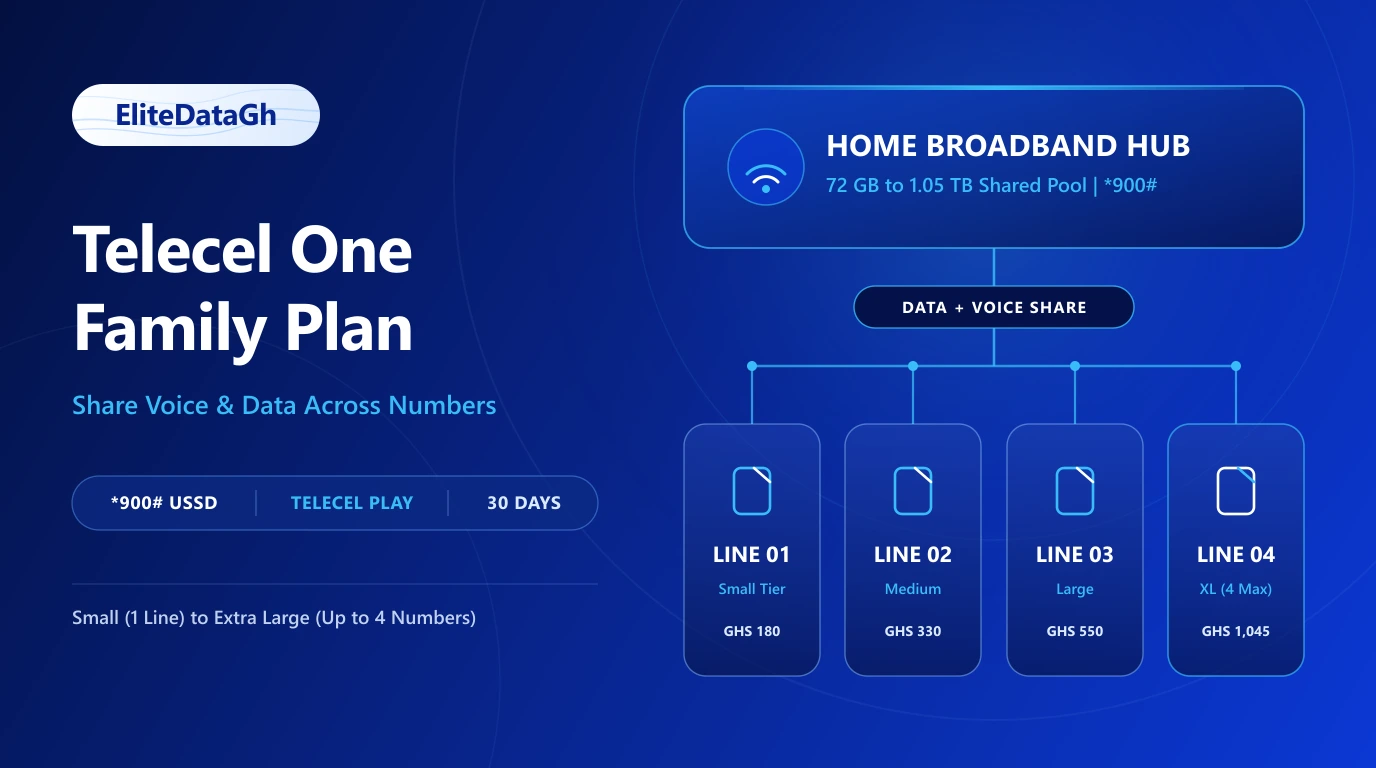
Telecel One Family explained: dial *900# or use Telecel Play to share broadband data and voice across 1 to 4 paired numbers on 30-day household plans cleanly.
How to Share or Transfer Airtime on Telecel Ghana Using *516#
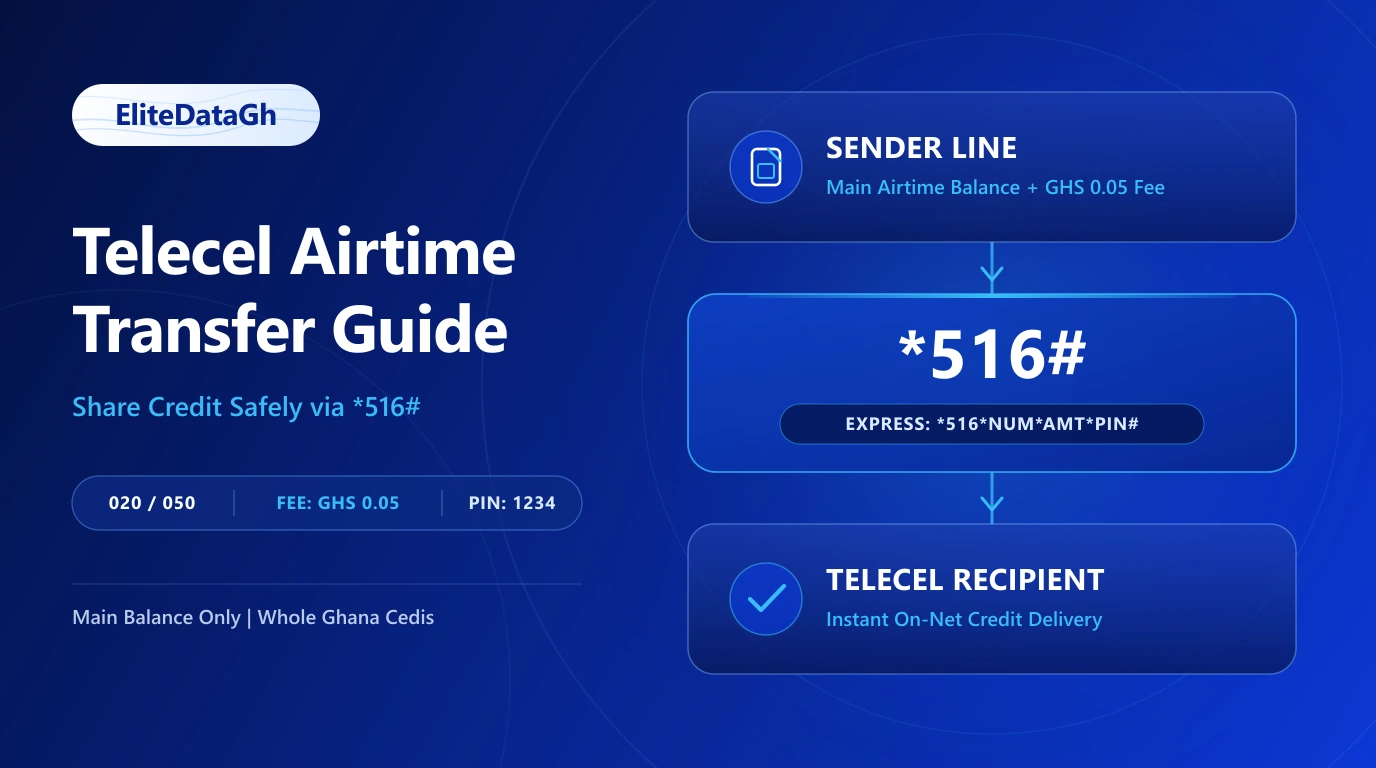
Dial *516# on Telecel Ghana to share airtime credit to 020 and 050 numbers. Learn the express code, GHS 0.05 fee, default 1234 PIN setup, and transfer rules.
MTN Pulse and Mashup Bundles (*567#): Complete USSD Guide and Validity Rules
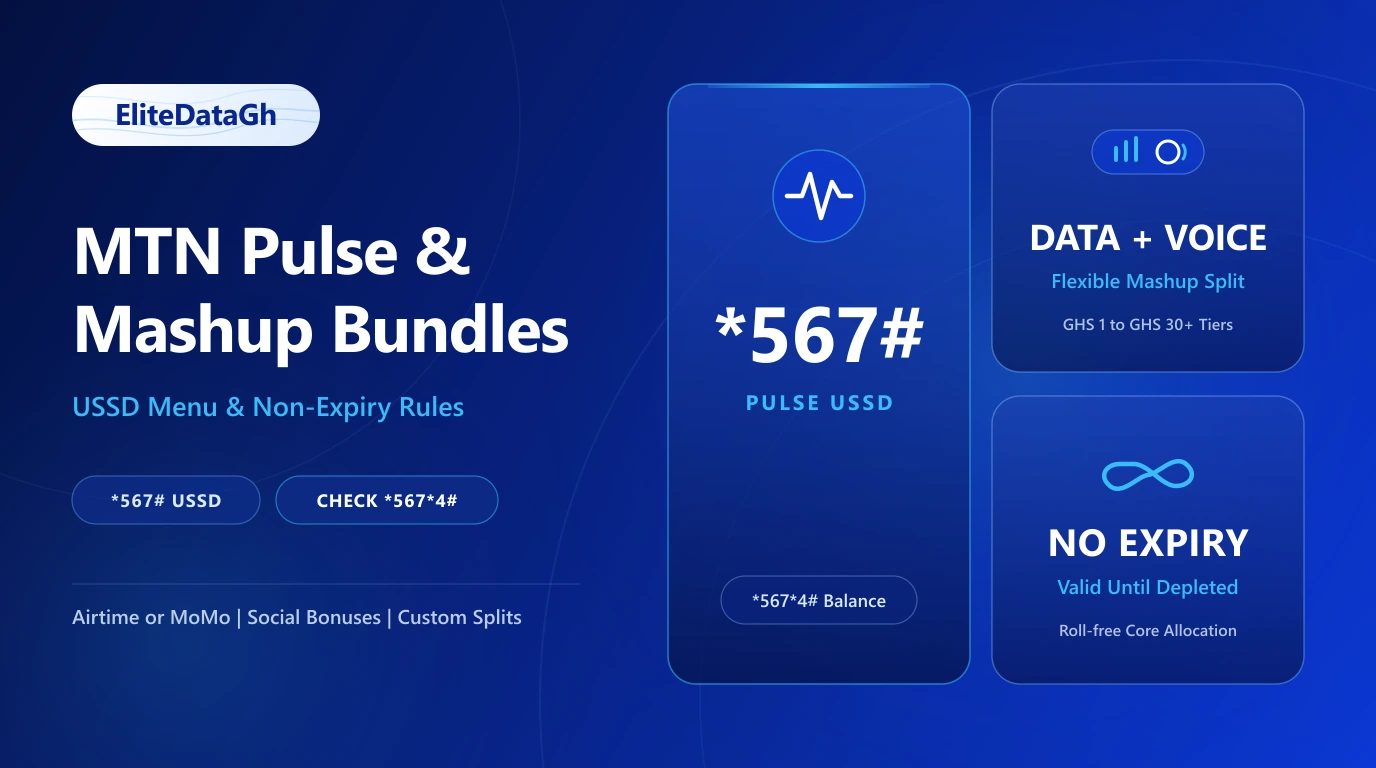
Dial *567# for MTN Pulse Mashup bundles in Ghana. Explore Voice and Data mix rules, social bonuses, non-expiry validity, and *567*4# balance checks cleanly.
MTN Ghana Data Zone (*138#) Explained: Why Offers Disappear and How to Qualify
Learn why MTN Ghana Data Zone (*135# and *138#) and Just4U (*141#) offers change, how NCA SMP rules affect pricing, and how your SIM qualifies for better data.
How to Cancel Unwanted Subscriptions and Caller Tunes Draining MTN Airtime
Cancel unwanted MTN Ghana subscriptions draining your airtime: dial *175# for VAS promos, *1355# or SMS Unsubscribe to 1355 for Caller Tunez, and STOP to 138.
How to Check Your SSNIT Number, Statements, and Pay Contributions via USSD (*711*9#)
Dial *711*9# on MTN, Telecel, or AT to verify your SSNIT number, merge your Ghana Card, email contribution statements, and pay SEED MoMo contributions.
Complete Guide to Ghana Emergency Shortcodes: Police (191), Fire (192), Ambulance (193), and 112
Dial 112 toll-free in Ghana for unified Police (191), Fire (192), and Ambulance (193) dispatch, plus verified NADMO, DOVVSU, ECG, and 292 cyber hotlines.